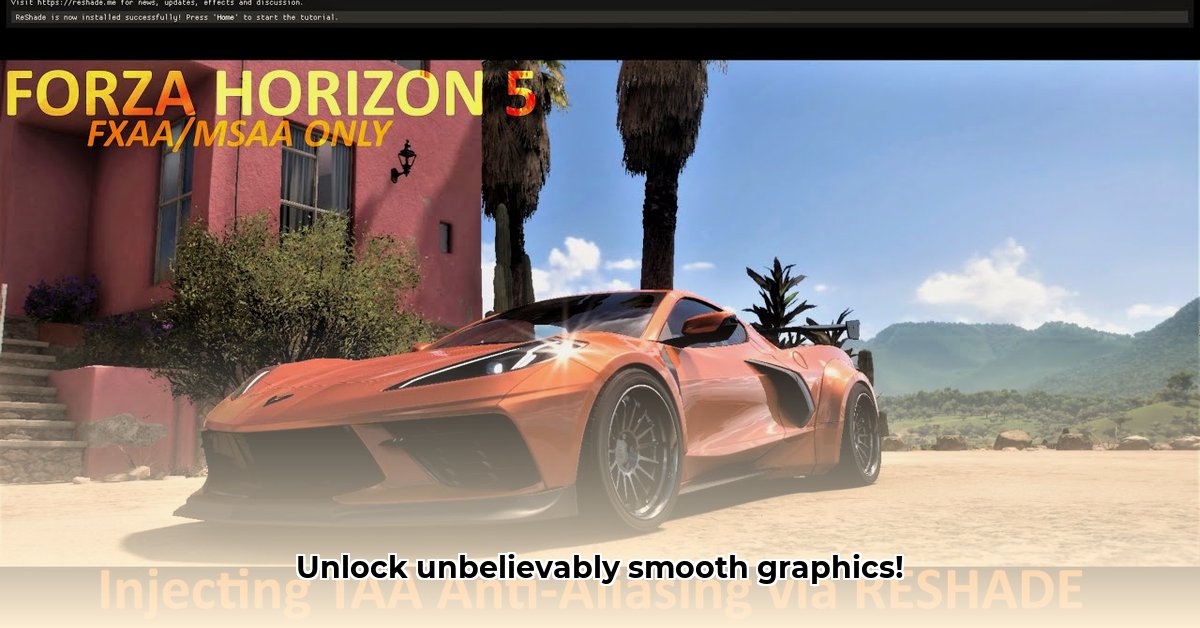
Jagged edges and blurry graphics ruining your gaming experience? ReShade Temporal Anti-Aliasing (TAA) can significantly improve your visuals, offering smoother, clearer gameplay. This guide compares popular ReShade TAA options like cheap-taa and AstrayFX, helping you choose the best solution for your system. We'll cover installation, configuration, and troubleshooting, ensuring stunning graphics in your favorite games.
Understanding ReShade and TAA
ReShade is a post-processing injector (a program that adds visual effects after the game renders) allowing you to enhance your game's visuals. Temporal Anti-Aliasing (TAA) is an anti-aliasing technique that uses information from multiple frames to smooth out jagged edges (aliasing), resulting in a cleaner image. Many games offer built-in TAA, but ReShade provides alternative implementations often superior in quality or performance.
Exploring ReShade TAA Options: A Comparative Review
Multiple community-created TAA options exist for ReShade. Let's compare some popular choices:
1. cheap-taa: This lightweight option leverages mouse movement for temporal smoothing. It's ideal for less powerful systems but might not perform as well in static scenes or games that don't involve consistent mouse movement.
- Pros: Minimal performance impact, simple setup.
- Cons: Motion-dependent; less effective in static scenes; potentially blurry results.
2. AstrayFX: A more sophisticated solution offering superior image quality, but at the cost of higher resource usage. It's better suited for systems with robust GPUs but might require tweaking depending on your game and hardware.
- Pros: Smoother visuals than
cheap-taa, handles various scenarios better. - Cons: Higher performance overhead; potential compatibility issues; might need adjustments per game.
3. Other ReShade TAA Presets: The ReShade community provides numerous alternatives. Always research compatibility, read reviews, and check for known issues before installing any preset.
Step-by-Step Installation and Configuration
- Download ReShade: Visit the official ReShade website (https://reshade.me/) and download the latest version.
- Select Game Executable: Run the ReShade installer, pointing it to your game's executable file (usually a
.exefile in your game's directory). - Choose TAA Effect: During installation, select your preferred TAA preset (
cheap-taa, AstrayFX, or another). - In-Game Adjustments: Use ReShade's in-game overlay to fine-tune settings. You might also need to adjust in-game anti-aliasing settings for optimal results.
Performance Considerations and Hardware Recommendations
More advanced TAA methods like AstrayFX demand more processing power. cheap-taa is preferable for older or low-powered systems prioritizing performance over visual fidelity. High-end systems prioritizing visuals should consider AstrayFX. Benchmarking is crucial for determining optimal settings and preset choice.
Troubleshooting Common Issues
- Game Crashes: Try a different TAA preset, lower its quality settings, or reduce in-game graphics settings. Check for compatibility issues with your game and graphics card.
- Visual Glitches: Adjust ReShade or in-game settings. Experiment to find the best balance.
- Poor Performance: Lower in-game settings or opt for a less demanding TAA implementation.
Choosing Your TAA: A Quick Reference
| Method | Performance Impact | Visual Quality | Recommended Hardware |
|---|---|---|---|
cheap-taa | Very Low | Moderate | Low-end systems |
| AstrayFX | Moderate to High | High | Mid-range to high-end systems |
| Other Solutions | Varies | Varies | Varies |
Remember, experimentation is key! The best TAA for you depends on your specific hardware and gaming preferences. Regularly check the ReShade community for updates and new solutions.
⭐⭐⭐⭐☆ (4.8)
Download via Link 1
Download via Link 2
Last updated: Tuesday, April 29, 2025